iPhones
What’s a shortcut?
A shortcut is a quick way to get one or more tasks done with your apps. The Shortcuts app lets you create your own shortcuts with multiple steps. For example, build a “Surf Time” shortcut that grabs the surf report, gives an ETA to the beach, and launches your surf music playlist.
Intro to Shortcuts on iPhone and iPad
What’s a shortcut?
A shortcut provides a quick way to get things done with your apps, with just a tap or by asking Siri.
Shortcuts can automate a wide variety of things—for example, getting directions to the next event on your Calendar, moving text from one app to another, generating expense reports, and more.
Based on how you use your Apple devices—your app usage and your browser, email, and messaging history—Siri suggests simple, useful shortcuts that you can quickly tap to run. Once you create a shortcut, you can activate Siri, then say the shortcut’s name to run it.
The Shortcuts app
In addition to running the simple shortcuts suggested by Siri, you can use the Shortcuts app to add ready-made or custom shortcuts to your devices. The app lets you combine multiple steps across multiple apps to create powerful task automations.
What’s an action?
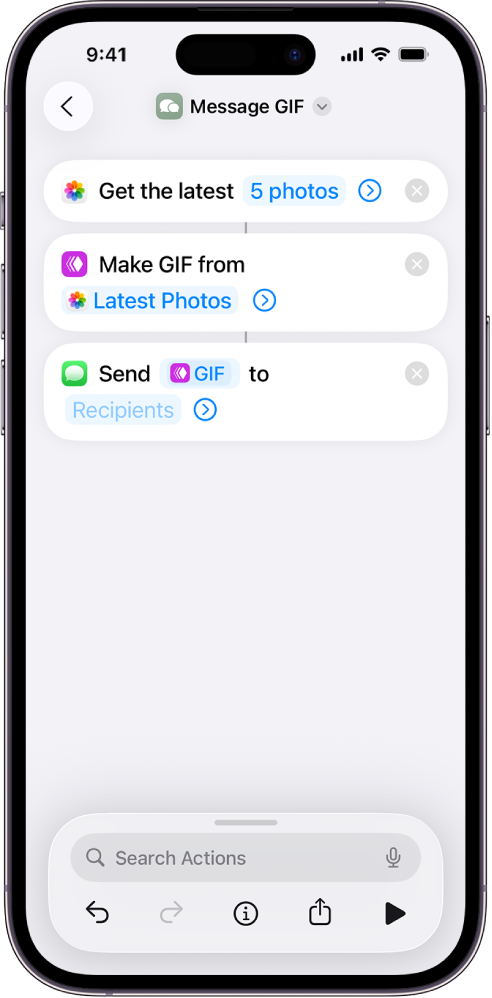
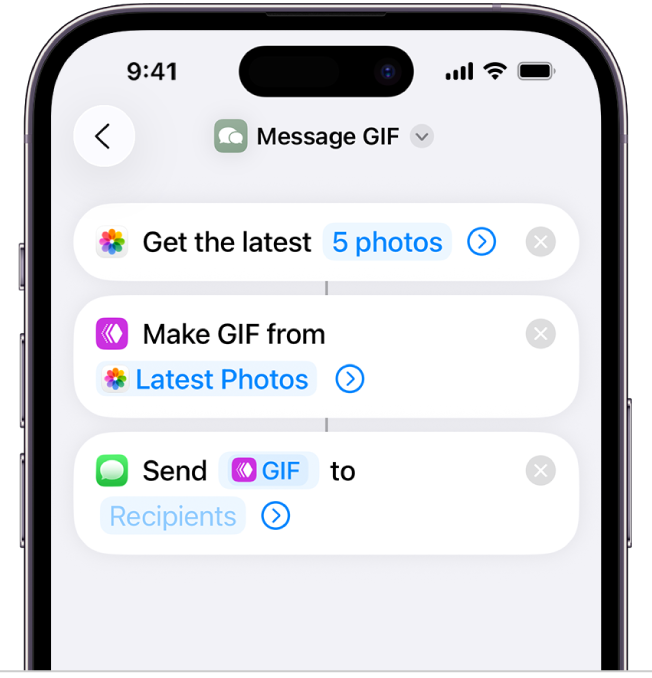
An action is the building block of a shortcut. Each shortcut comprises a series of actions, and each action is a single step that performs a particular function. For example, a shortcut that shares an animated GIF might contain three consecutive actions: Get Latest Photos grabs the latest photos that you took on your device, Make GIF uses those photos to build an animated GIF, and Send Message automatically sends the GIF to your recipients.
Actions represent the best features of the apps on your Apple devices, broken out into smaller parts. With hundreds of actions, there are a variety of individual steps you can chain together to build shortcuts.
Where are shortcuts stored?
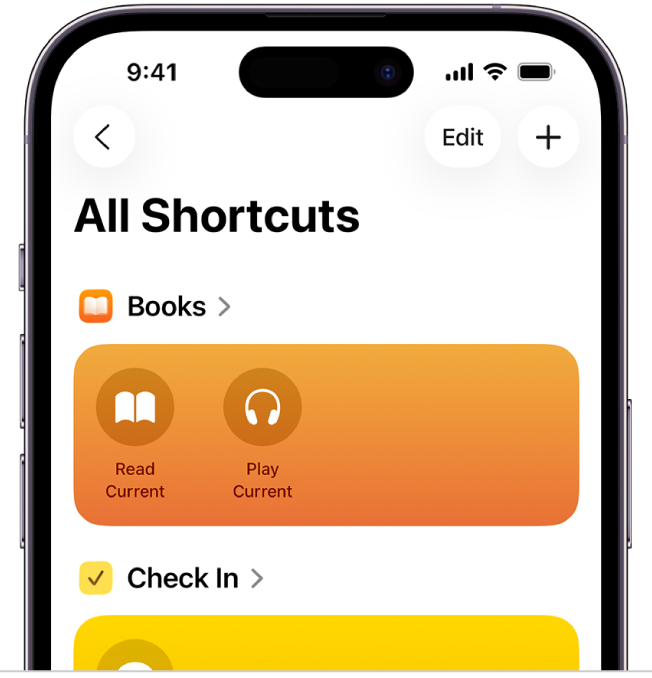
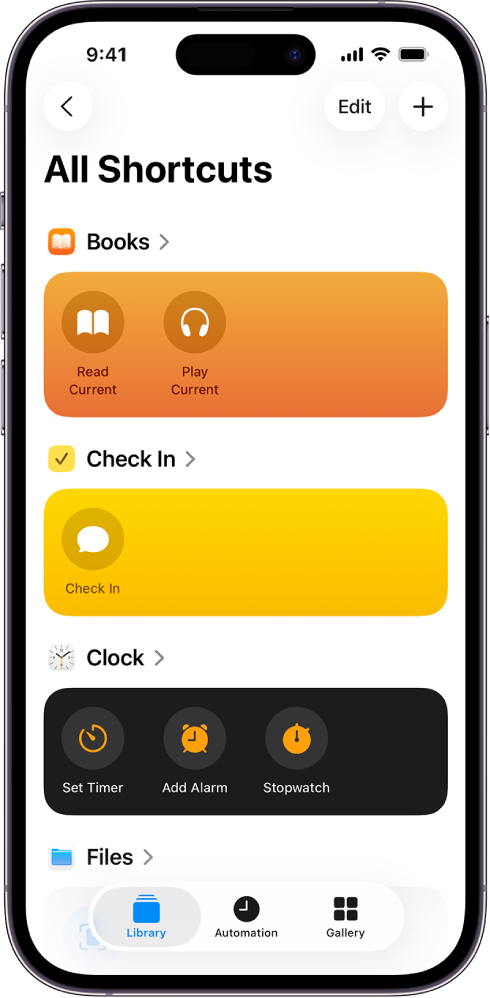
In the Shortcuts app, shortcuts are organized in collections in the Shortcuts screen (iOS) and Shortcuts sidebar (iPadOS):
- All Shortcuts: Contains all of your shortcuts and shortcuts available in apps.
- My Shortcuts: Contains all of your shortcuts.
- Share Sheet: Contains shortcuts that are available in the share sheet of another app.
- Apple Watch: Contains shortcuts that are available on your Apple Watch.
- App Shortcuts: Contains all of the shortcuts available in apps.
When you tap a collection name, all shortcuts in that collection are shown in a grid array. Each shortcut is represented by a rounded rectangle that has a title, an icon, and a color. Tap a shortcut once to run it, or tap  to see the actions contained inside.
What’s an action?
An action—the building block of a shortcut—is a single step in a task. Mix and match actions to create shortcuts that interact with the apps and content on your Apple devices, as well as with content and services on the Internet. Each shortcut is made up of one or more actions.
Navigate the action list in Shortcuts on iPhone or iPad
Actions are the building blocks of a shortcut. As you add actions to your custom shortcut, you can view information about each action, sort the list of available actions by category or by search term, and create favorite actions for future use. Because many actions use other apps on your device, you can also view actions sorted according to the app they use.
As you build a shortcut, the Shortcuts app predicts what actions you may want to use next. For example, if the last action is a Contacts action, the app suggests actions such as Call or FaceTime. In a shortcut that ends with a Get Current Song action, the list suggests actions such as Add to Playlist or Get Details of Music.
Note: Actions that use another app on your device to accomplish a task may require you to grant permission by tapping Allow Access in the shortcut editor.
View all actions in a specific category
- In the Shortcuts app
 on your iPhone or iPad, tap on a shortcut.
 - In the shortcut editor, tap
 Search Actions to display a list of action categories.
 -
Tap a category name (Media or Web, for example).
All actions related to the category you chose appear in the list, organized by subcategory.
View Information about an Action
- In the Shortcuts app on your iPhone or iPad, tap on a shortcut.
- In the shortcut editor, tap Search Actions to display a list of action categories.
-
Tap an action category in the list, then tap
 for a specific action.
A brief description of the action appears, including the type of content that can be used as input (if any) and the resulting output. To learn more about inputs and outputs, see Intro to how shortcuts work on iPhone and iPad.
Tip: Once an action is placed in a shortcut, you can tap the action’s icon, then tap Show Info to display the action’s description.
Search the list of Actions
- In the Shortcuts app on your iPhone or iPad, tap on a shortcut.
- In the shortcut editor, tap Search Actions to display a list of action categories.
-
Enter a term in the search field.
The list is sorted to show actions containing that search term as well as the apps used by those actions. Try searching for get, find, or add to explore a variety of actions across multiple categories. You can also search for specific topics like music or events, or for apps and services you use.
View all available actions for an app
As you build a custom shortcut or modify and existing shortcut, you can easily sort the list of available actions by app name—for example, to see all of the actions that use the Safari app.
- In the Shortcuts app on your iPhone or iPad, tap on a shortcut.
- In the shortcut editor, tap to display a list of action categories.
- Tap Apps.
-
Tap an app name.
Pin your favorite actions
All actions related to the app you chose appear in the list.
- In the Shortcuts app on your iPhone or iPad, tap on a shortcut.
- In the shortcut editor, tap to display a list of action categories.
- Tap an action category, tap next to the action you want to pin, then tap Pin.
The action is pinned to the top of the actions list.
- In the Shortcuts app
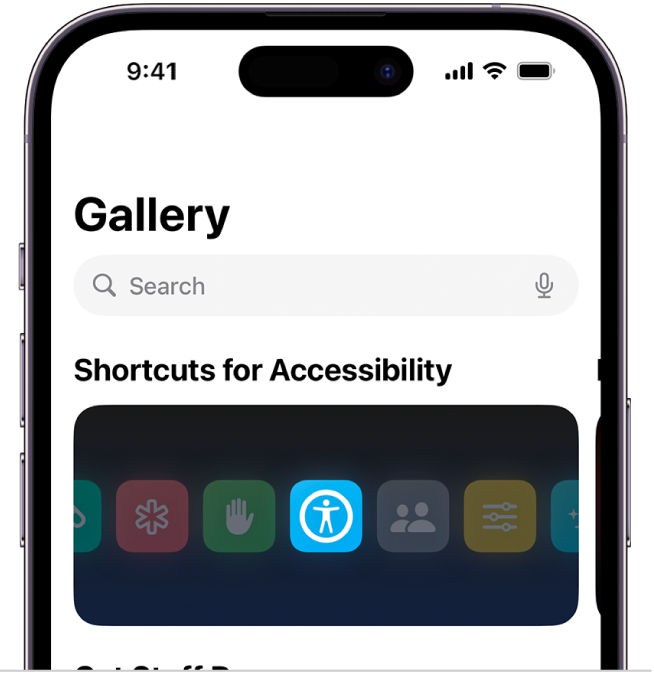
Where do I find shortcuts?
The Gallery features a curated collection of creative and useful shortcuts. Explore the Gallery to check out shortcut possibilities and to see how they’re built. When you find a Gallery shortcut you like, add it to your shortcuts collection with a simple tap and customize it to suit your needs.
Discover shortcuts in the Gallery on iPhone or iPad
If you’re looking for new shortcuts to add to your collection, or if you want to see what’s possible and how particular shortcuts are built, check out the Gallery in the Shortcuts app.
Open and browse the Gallery
-
In the Shortcuts app
on your iPhone or iPad, do one of the following:-
iPhone: Tap Gallery
 at the bottom of the main screen.
 -
iPad: Swipe from the left edge of the screen, then tap Gallery in the sidebar.
Curated shortcuts appear organized into category rows (Essentials, Morning Routine, and so on).
-
iPhone: Tap Gallery
- Tap See All to see all the shortcuts in a category.
- Swipe a category row sideways to see other shortcuts in a category.
-
Swipe up or down to see more category rows.
Tip: To open the Gallery from the Home Screen of your device, touch and hold the Shortcuts app icon, then tap Gallery
.
Add a Gallery shortcut to your collection
-
In the Shortcuts app Gallery
 on your iPhone or iPad, tap a shortcut.
A description of the shortcut appears, along with a preview of its actions.
Tip: To quickly add a shortcut to your collection, tap
 .
. - To add the shortcut to your collection, tap Add Shortcut or Set Up Shortcut (if there are setup steps).
-
For shortcuts with additional setup steps, follow the instructions that appear, then tap Add Shortcut.
The shortcut is added to your shortcuts collection.
Search the Gallery
You can search for additional shortcuts not shown in the Gallery.
- In the Shortcuts app Gallery on your iPhone or iPad, tap at the top of the screen.
-
Enter a search term in the search field.
Shortcuts that match your search term appear below the field.
Comments
0 comments
Article is closed for comments.