Update a Template
You cannot edit a template that has already been created. Instead, create a new template and delete the original.
Create Updated Template
To update a template:
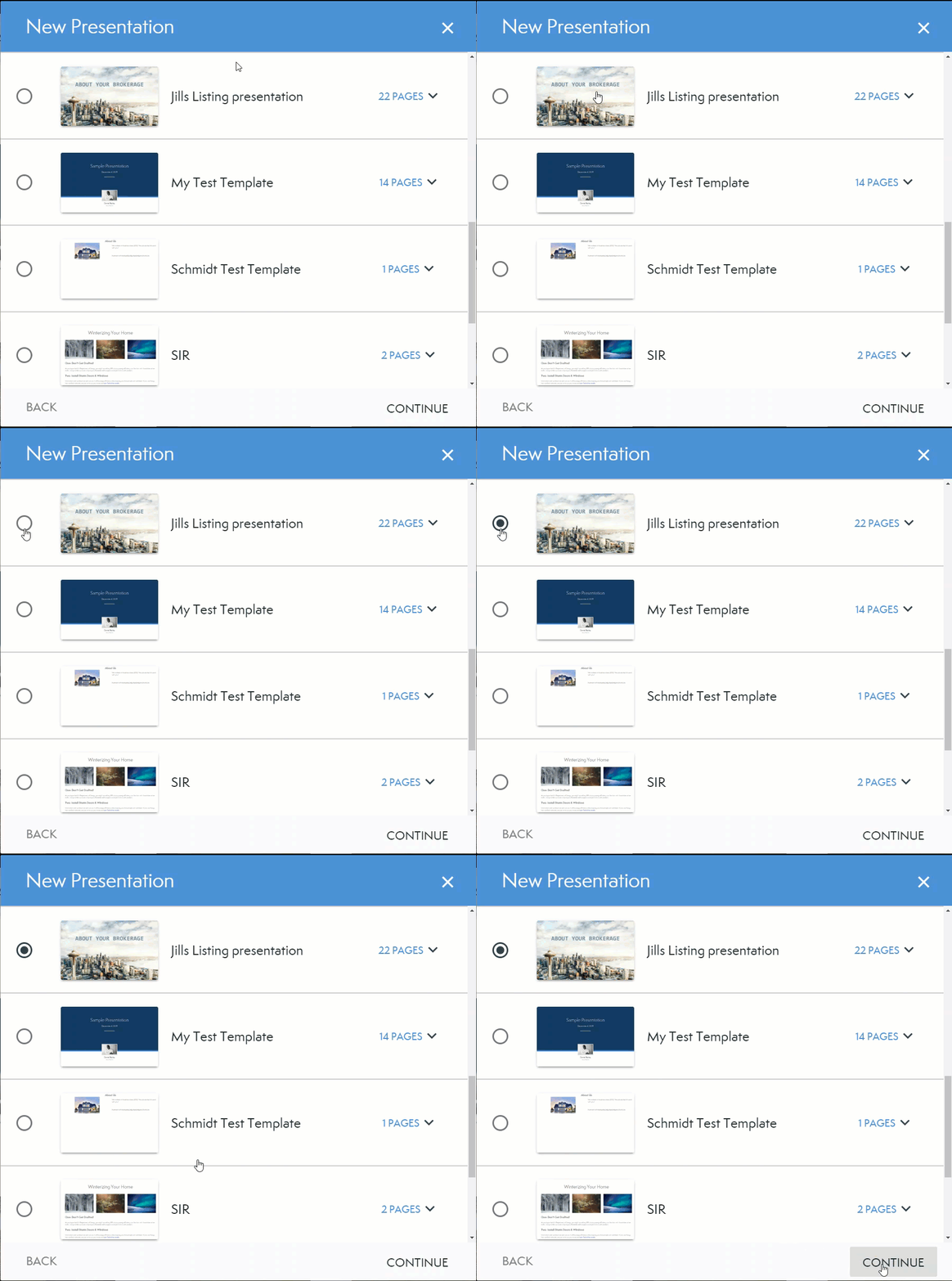
- Create a new presentation and apply the template you would like to change.
- Click the Pages tab and make the page order changes you want.

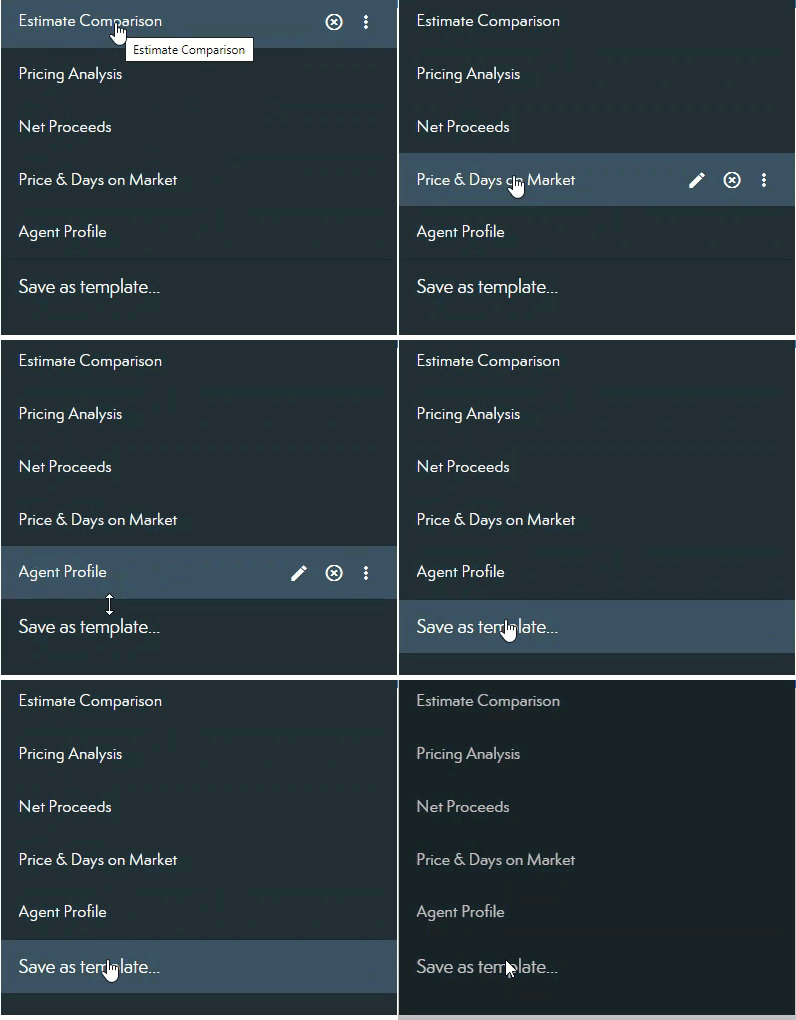
- Click Save as a template…under the list of pages on the left.
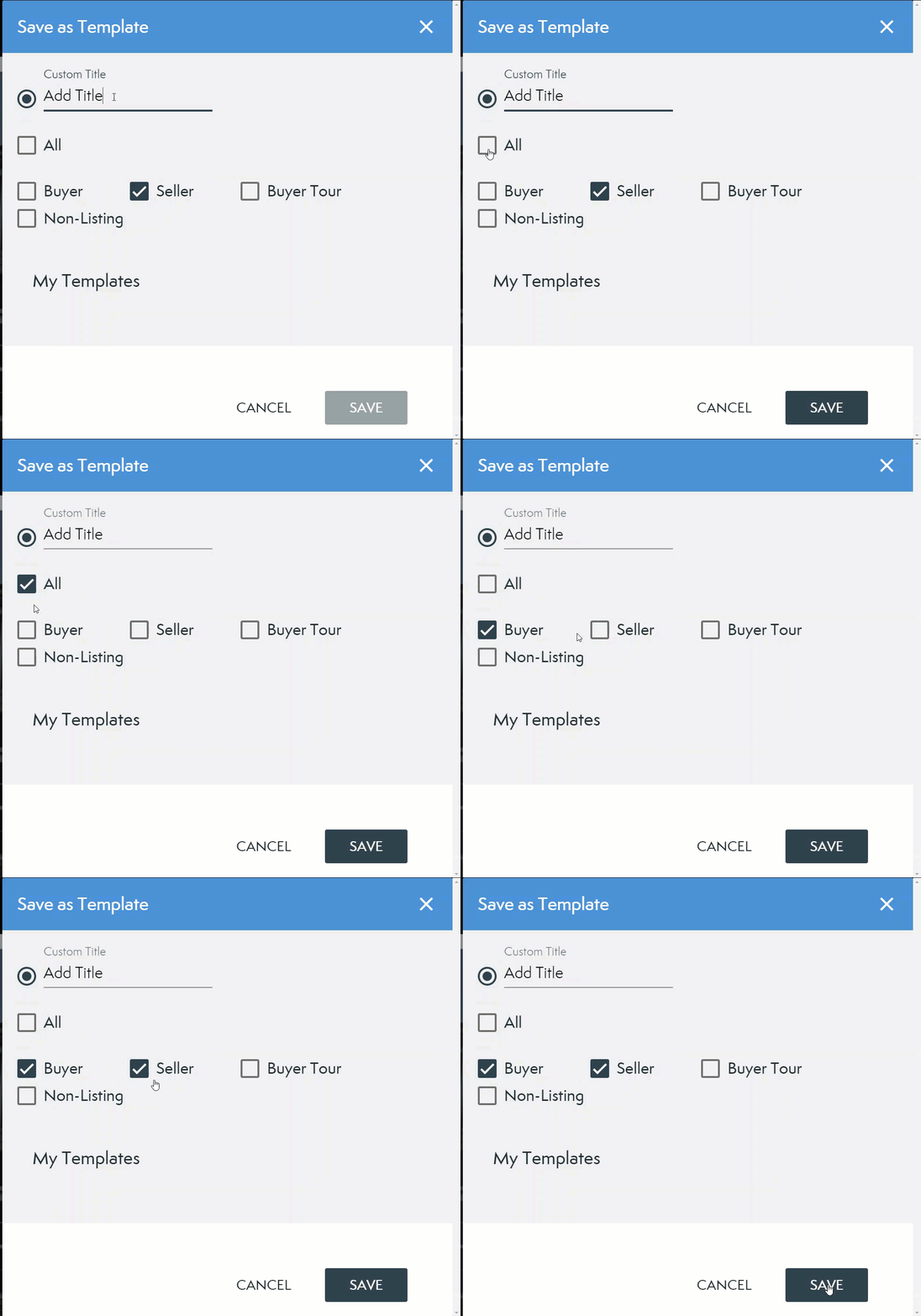
- Name your new template and choose which type of template it is (e.g. Seller, Buyer, Non-listing, Buyer Tour).
You have a new template with pages in the order that you want them.
Delete the Old Template
To delete the old template on the Pages tab:
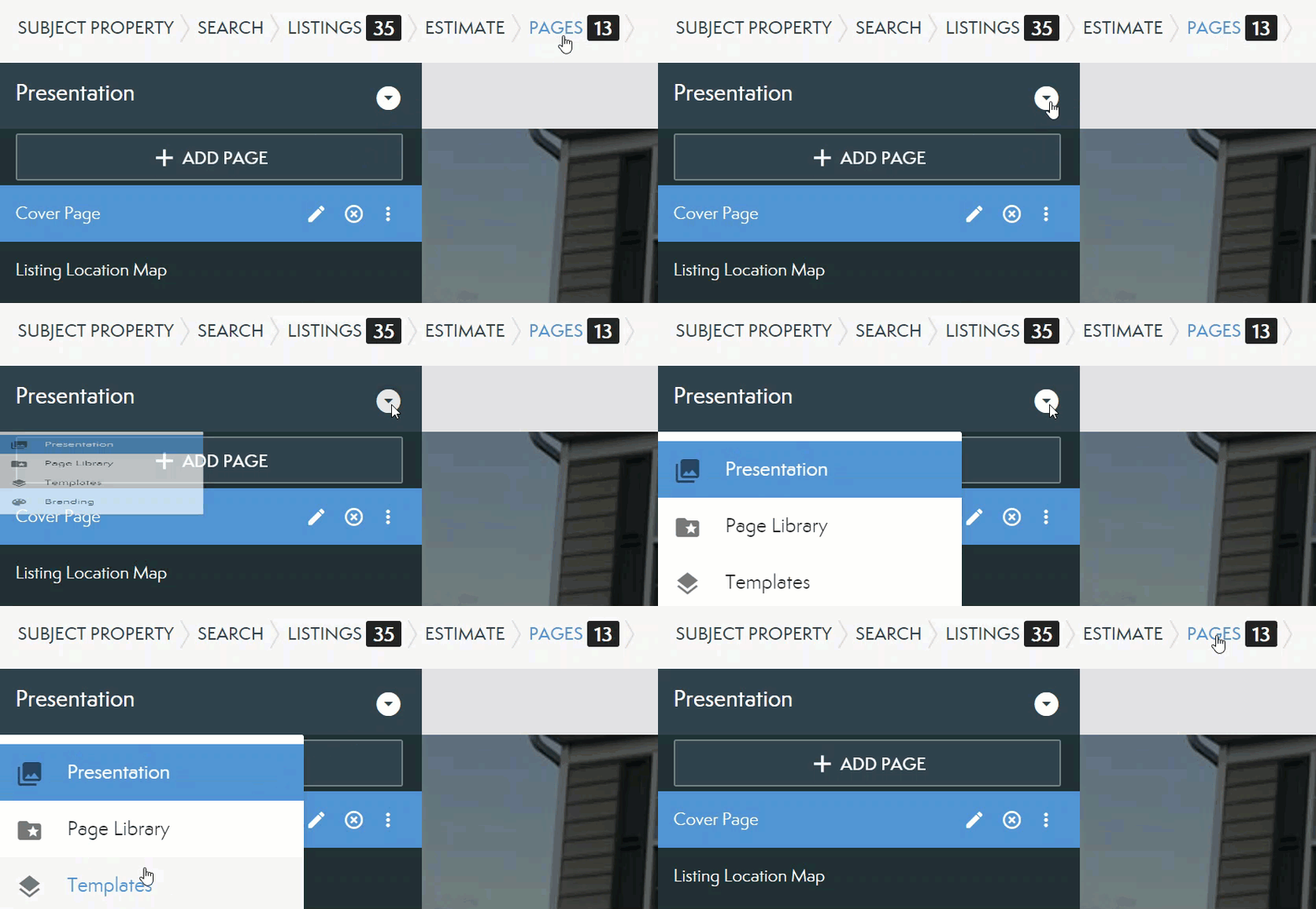
- Select the white circle to the right of Presentation and select Templates from the drop-down menu.
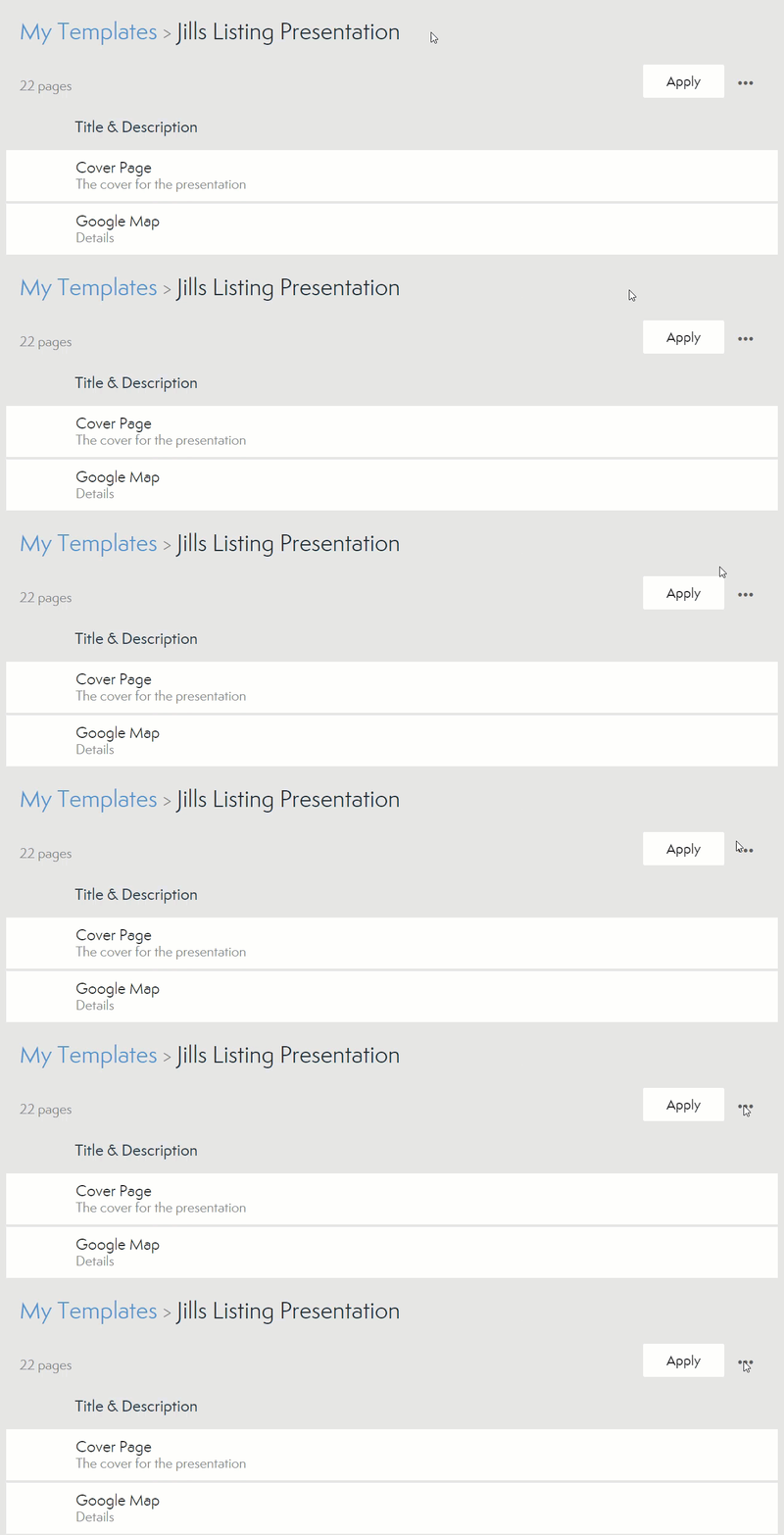
- Choose the template you want to delete.
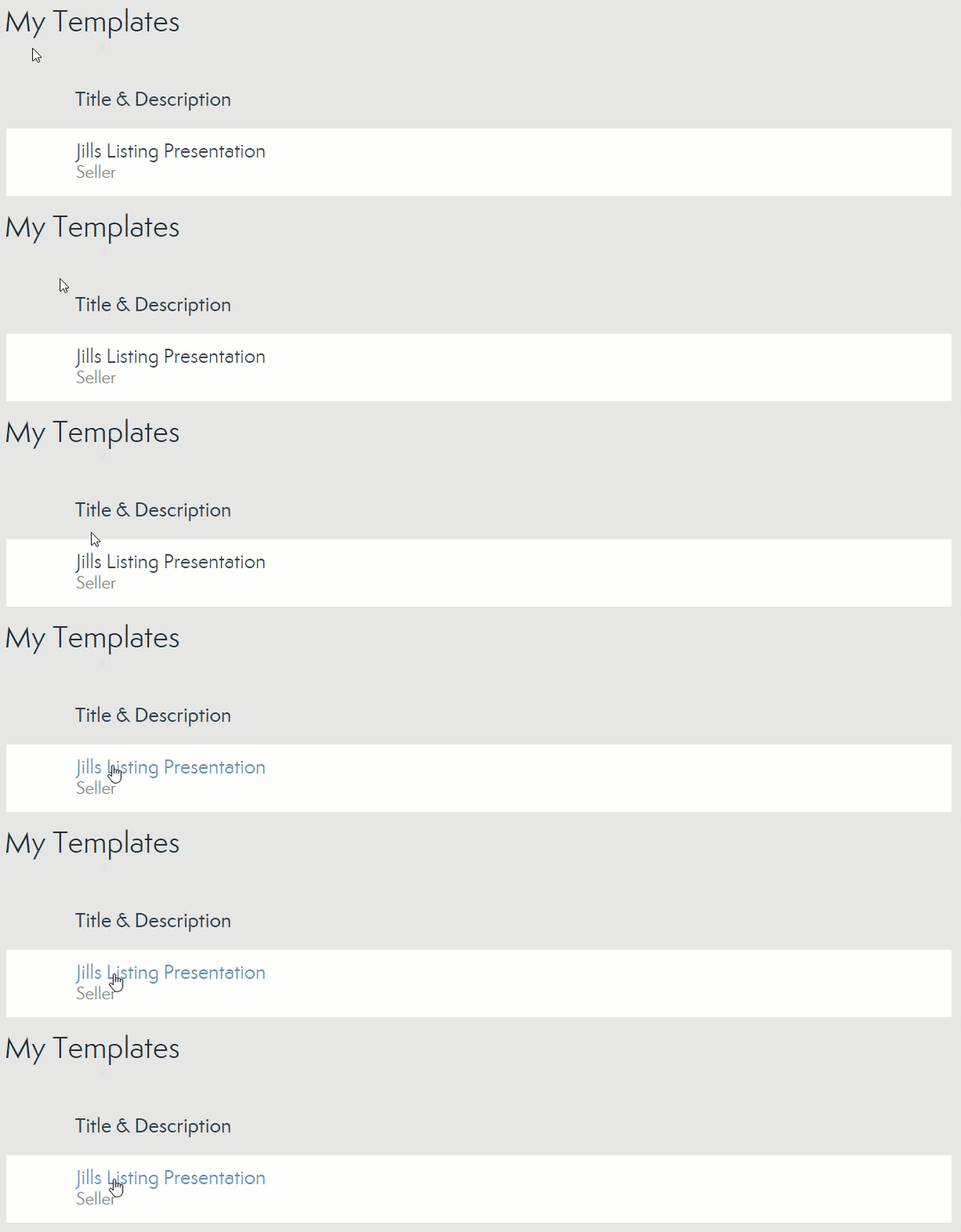
- Click the three dots next to Apply.
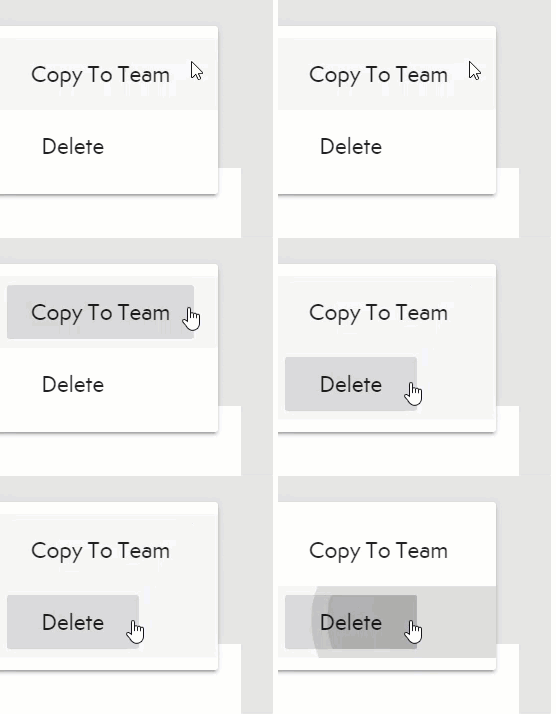
- Choose Delete.
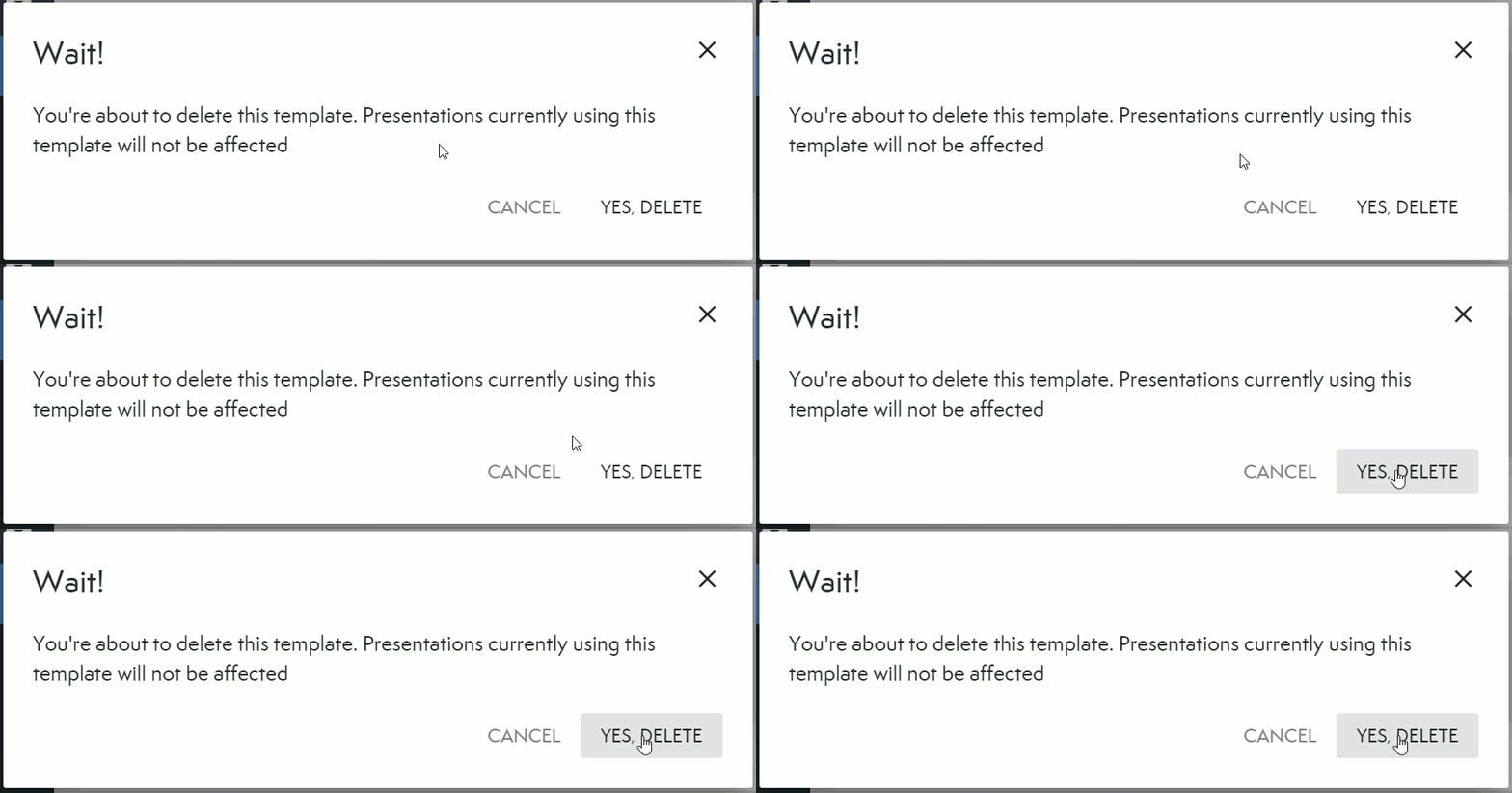
- Click Yes, Delete in the pop-up to confirm you want to delete the template.
Comments
0 comments
Please sign in to leave a comment.